
Portal
Your account, in one place.
Everyone with a Trustwelt account has the Portal: for their own computers and sign-ins, for the company logins their organisation shares with them, for their plan, and for their own activity. It shows a site and a username at most. It never holds a password.
Overview
Where you stand, and what to do next.
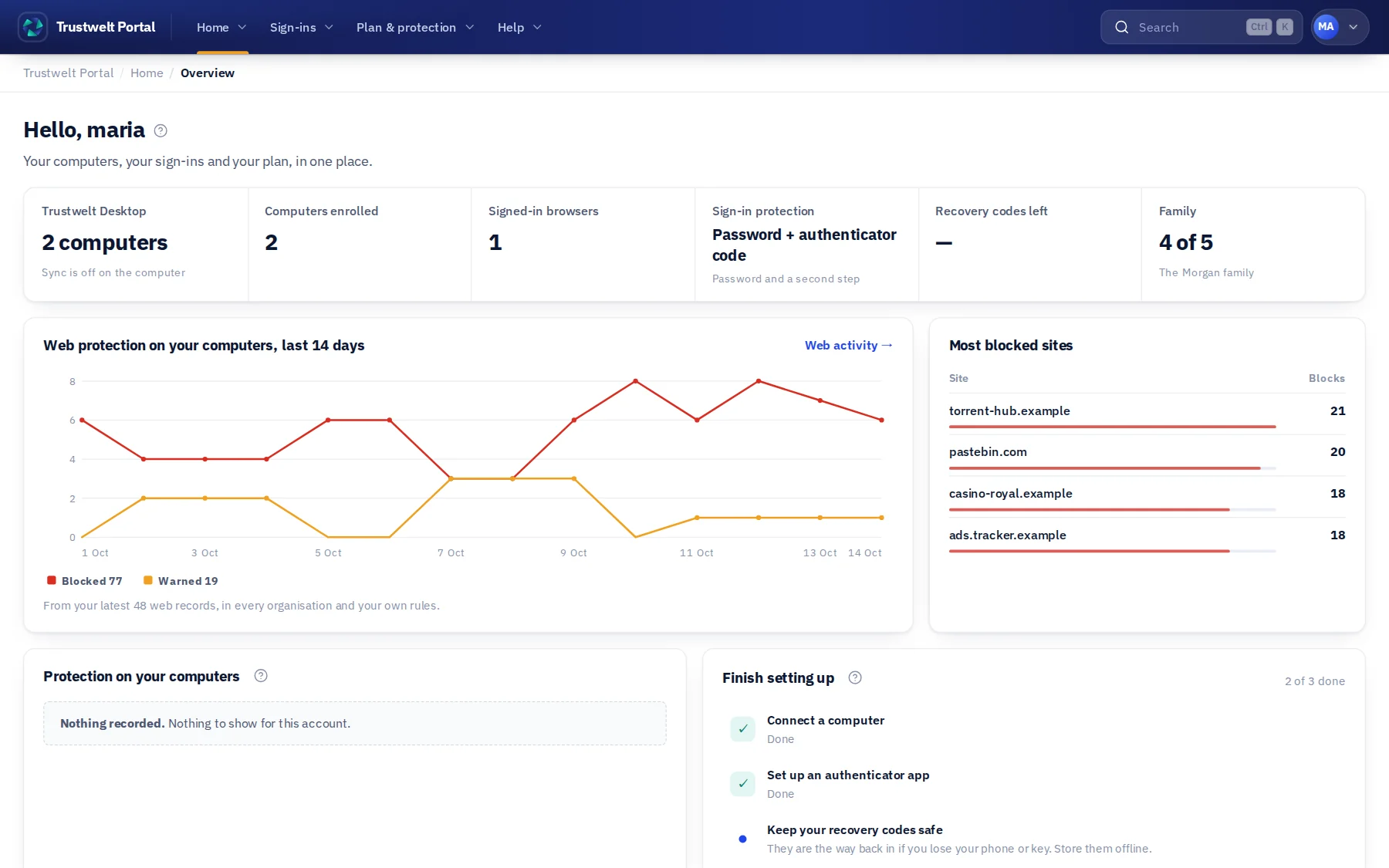
The overview shows your computers, the browsers you are signed in from, the company logins you may use and the state of your sign-in protection, with the next step for each.
Sign-in protection
A password, a second step, and a way back in.
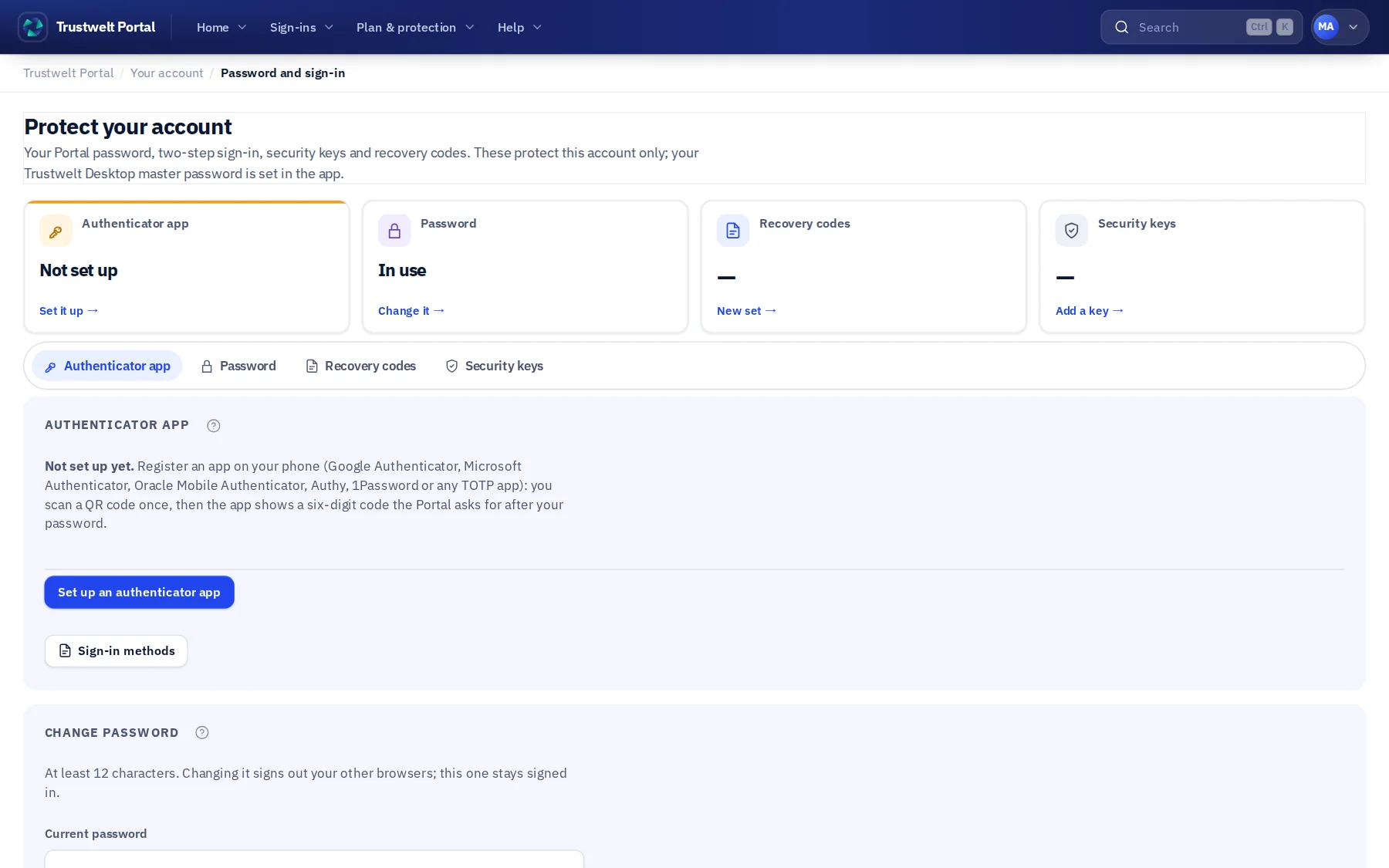
Sign in with your password and a one-time code from an authenticator app, or with a security key or passkey. Keep recovery codes for the day you lose your phone.
- Two-step sign-in with any authenticator app. Changing it asks for a current code first.
- Security keys and passkeys, several per account, each with a name you choose.
- Recovery codes, shown once. Each one works once.
- Every session listed with its browser and time. Sign out one, or sign out everywhere at once.
- Change your email address with a confirmation to both addresses, and your password with the current one.
Computers
Connect a computer with a one-time token. Revoke a lost one at once.
Each computer that runs Trustwelt Desktop with your account, or the Trustwelt agent for your organisation, appears here with its name, its last contact and how fresh its evidence is.
- Connect Trustwelt Desktop by signing in from the app: the sign-in happens in your browser, and you approve the computer on a consent page. The app never sees your Portal password.
- Enrol a managed computer with a single-use token, scoped to your organisation and valid for a short time.
- Revoke a computer. It loses sync and your organisation's items at its next request, and its enrolment identity with it.
- Your plan's computer allowance is shown next to the computers that use it.
Company logins
What your organisation shares with you, and what you can do with it.
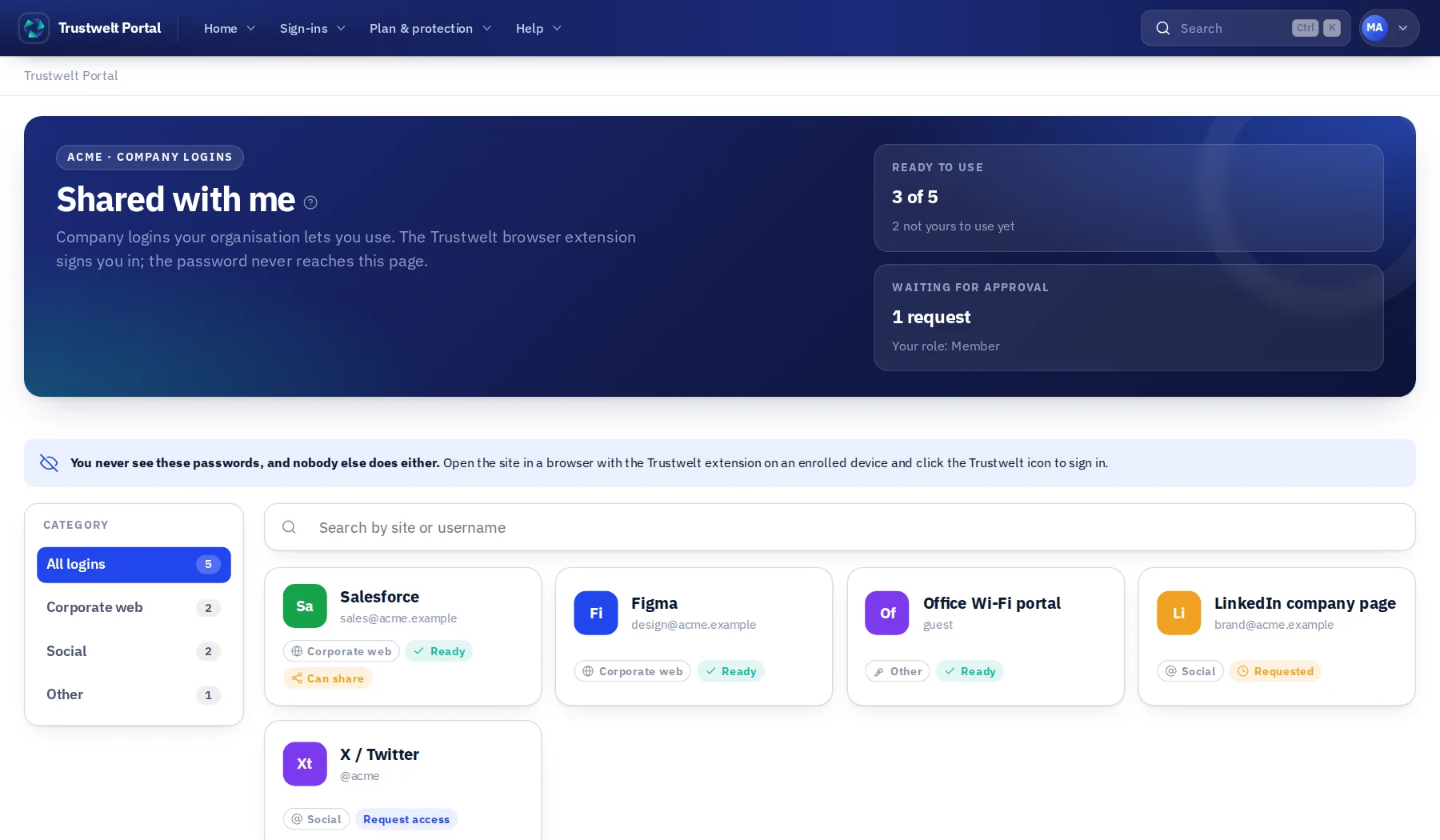
Company logins appear by site and username. Some you may use right away; some you may ask for, with a reason; some you may pass on to a colleague. You never see the password of any of them.
- Shared with me: the logins and cards you may use, filled in your browser by Trustwelt Desktop under a one-time permission.
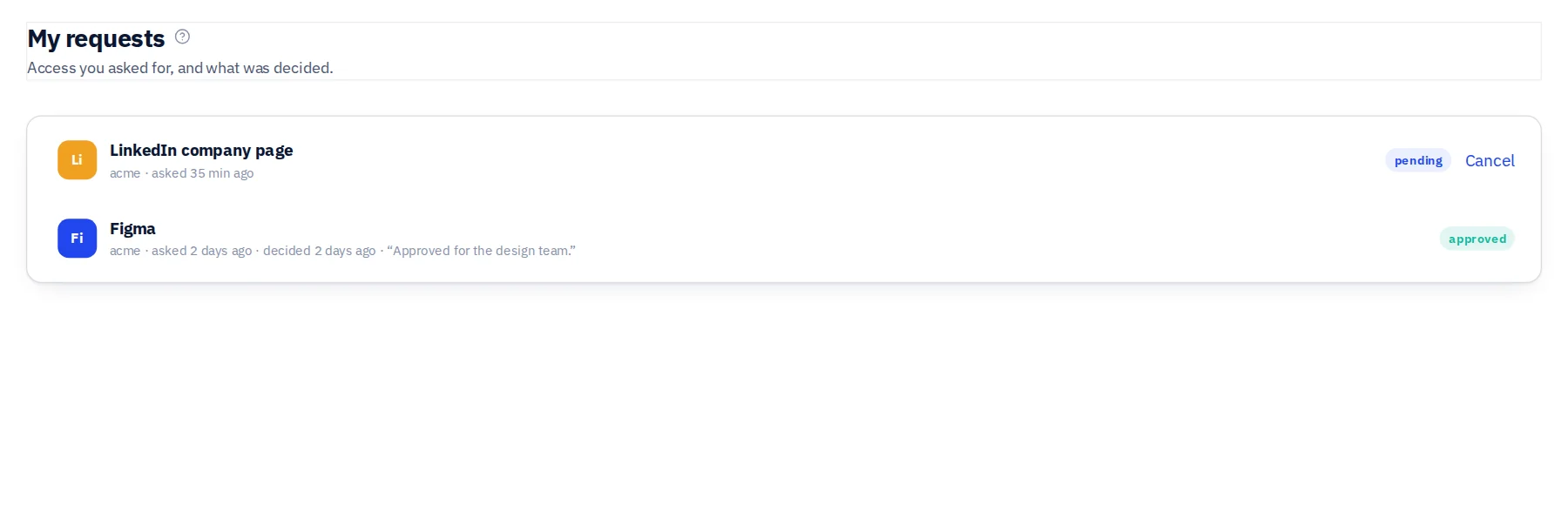
- My requests: ask for access to a login, with the reason, and follow what the managers of that login decided.
- Delegated sharing: pass the use of a login on to a colleague, when your role and its category allow it.
- Joining an organisation: accept a staff invitation with your own account. No password is ever sent to you.
For custodians and area admins
Run your scope from the Portal.
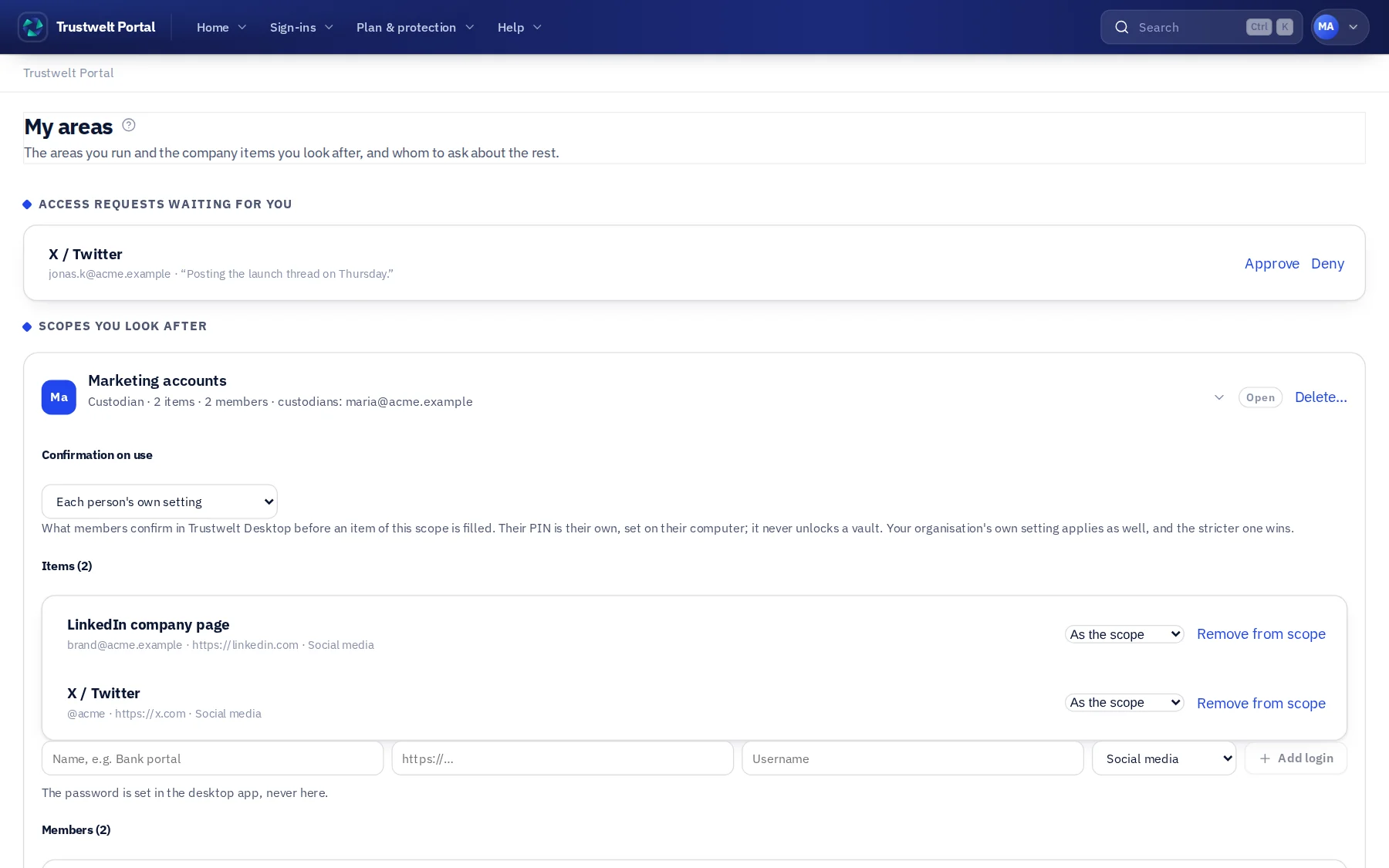
If your organisation made you a custodian of a scope, or an admin of an area, the Portal is where you work: decide requests, add logins and cards, add members, and see who else to ask.
My scopes
Each scope you hold, with its logins, its members and the requests waiting for you. Add a login or a card and share its use with your team.
My areas
The admin areas you run, what each one may do, whom to ask for more, and a way to step down or to open a new scope inside your area.
Two-person changes
Changing who holds a sealed scope needs a second custodian's agreement. You see the change waiting, and you decide it here.
Plans and billing
Your subscription, in plain sight.
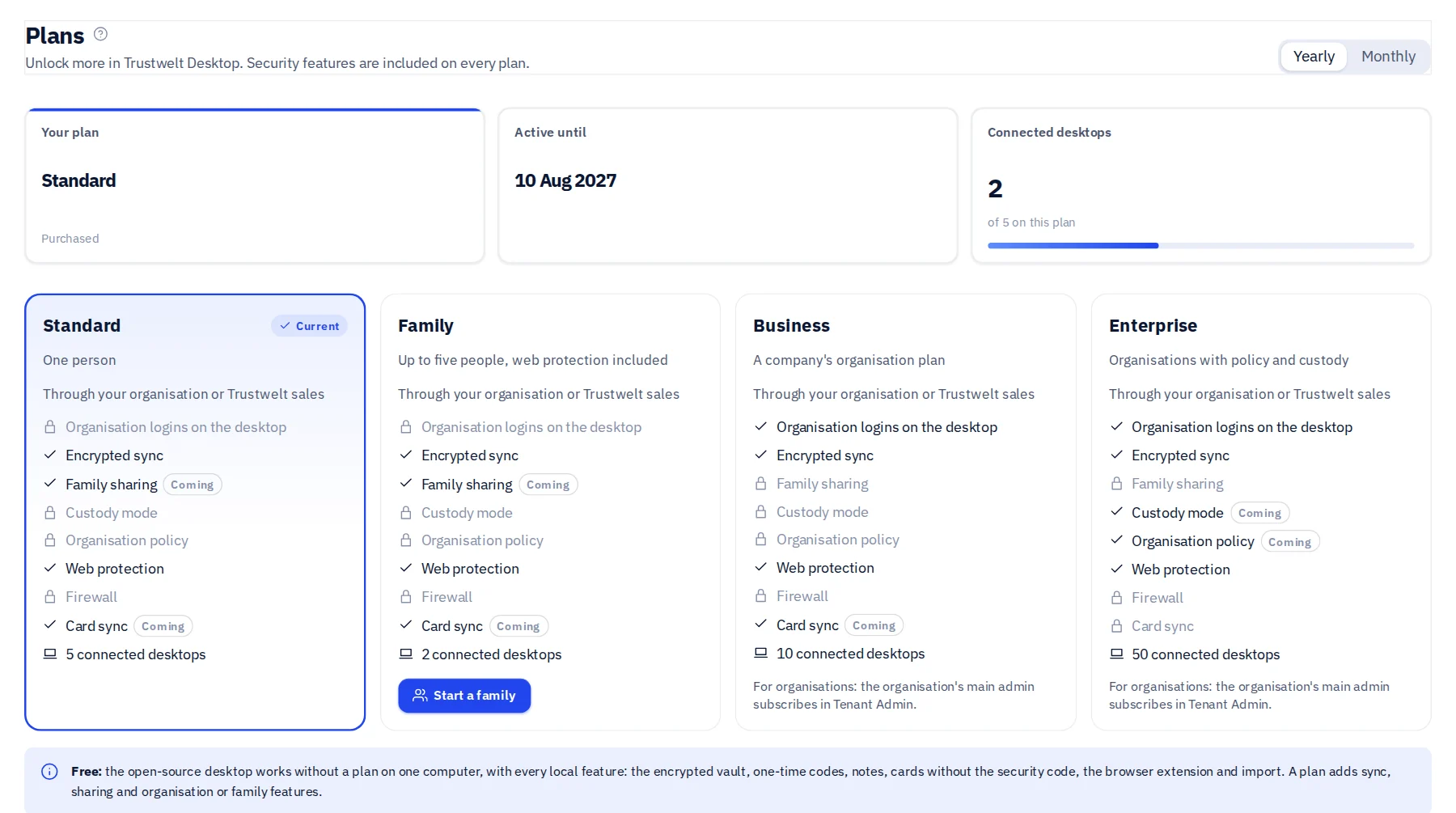
Choose a plan and a period, see the price before you pay, and pay on the provider's page. Every plan is a subscription you can cancel; a cancelled plan runs to the end of the paid period.
- Monthly or yearly. The price and currency are shown before payment, and a price agreed for you is applied automatically.
- Payment happens on the provider's secure page. Trustwelt never sees or stores your card number.
- Cancel any time in the Portal. The plan stays until the end of the period; after that your vault keeps working with its free, local features.
- Trustwelt Desktop picks the plan up at its next refresh, on every computer connected to your account.
- Business and Enterprise are subscribed by the organisation, in Tenant Admin.
Your activity
Your own record, end-to-end encrypted.
On paid plans, the activity record Trustwelt Desktop keeps on your computer also lives in your Portal space, sealed with your vault key. It is yours: no Tenant Admin, custodian or auditor can read it. If your organisation uses web protection, a separate page shows you exactly what it can see of your browsing — a blocked or warned site, and nothing else unless it has switched on the full activity log and told you so.
My activity
What was read in, and every use of a password, card or code, by day. Mask where you went; the event itself stays, so the record stays honest.
My cards
For each card you chose to show here: its label, network, last four digits and expiry. Never the number, never the name on it, and your organisation cannot see it.
My usage
Your uses of company logins and cards, the same records your organisation sees. Personal items never appear here or anywhere in the organisation's audit.
Help
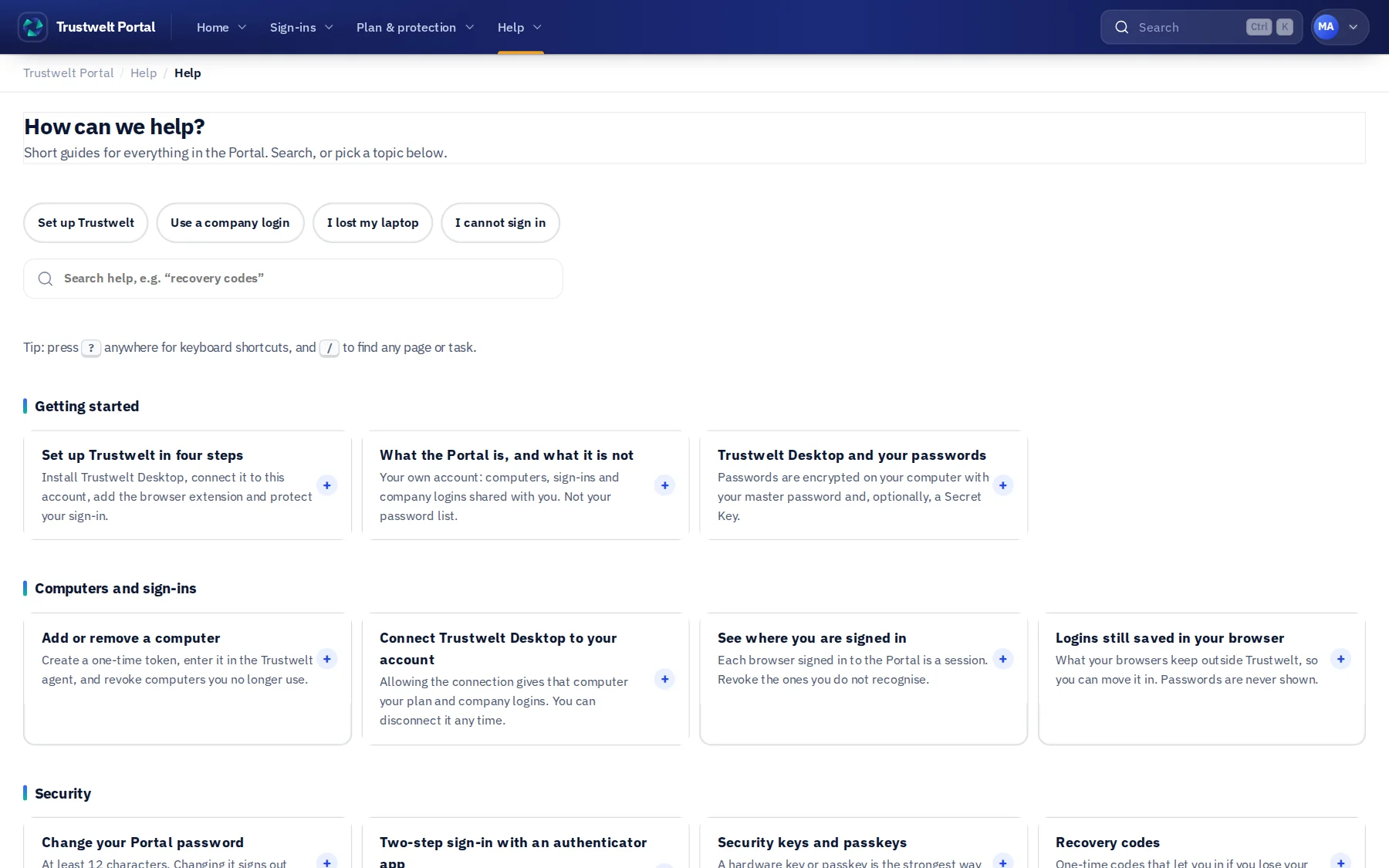
A help centre that knows the product.
- Task-based topics: connect a computer, set up two-step sign-in, ask for access, what to do when you lose your laptop.
- Troubleshooting for the extension and for sign-in, and a glossary of the words Trustwelt uses.
- A “?” beside anything that is not obvious, linking to the topic that answers it.
Start with a free account.
Two computers, every Trustwelt Desktop feature, and the Portal. Ask us and we open it for you.