
Organisations · Tenant Admin
Run your organisation from one console.
Tenant Admin is where an organisation's admins manage people, company logins and cards, devices and policy. It has its own address per organisation and its own sign-in, separate from the Portal. And it can never show a password, because it does not hold one.
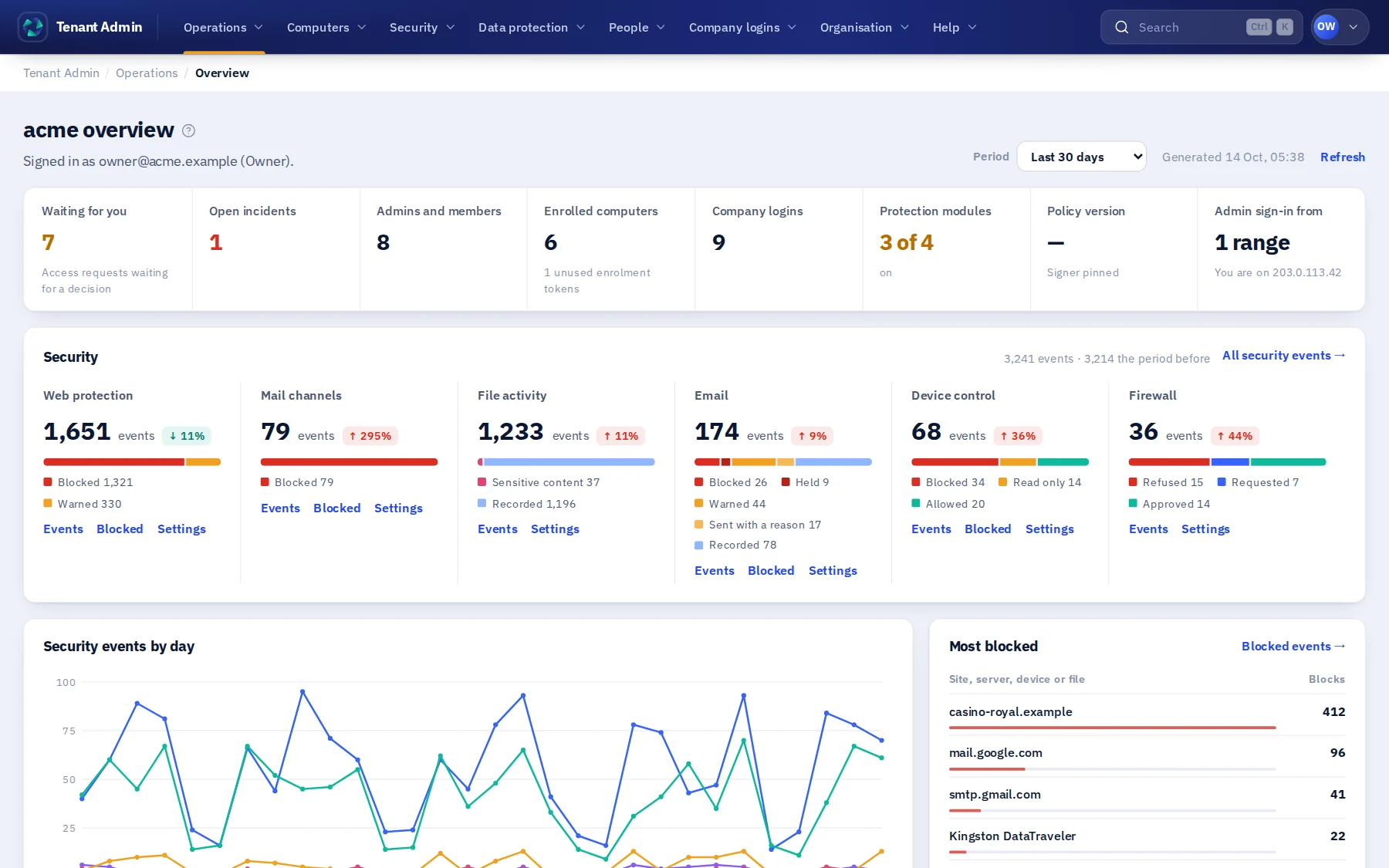
At a glance
People, company logins, computers and security, in one view.
The overview shows what needs a decision, what changed, and where each part of the organisation stands.
People and roles
A main admin who can do everything. Areas for everyone else.
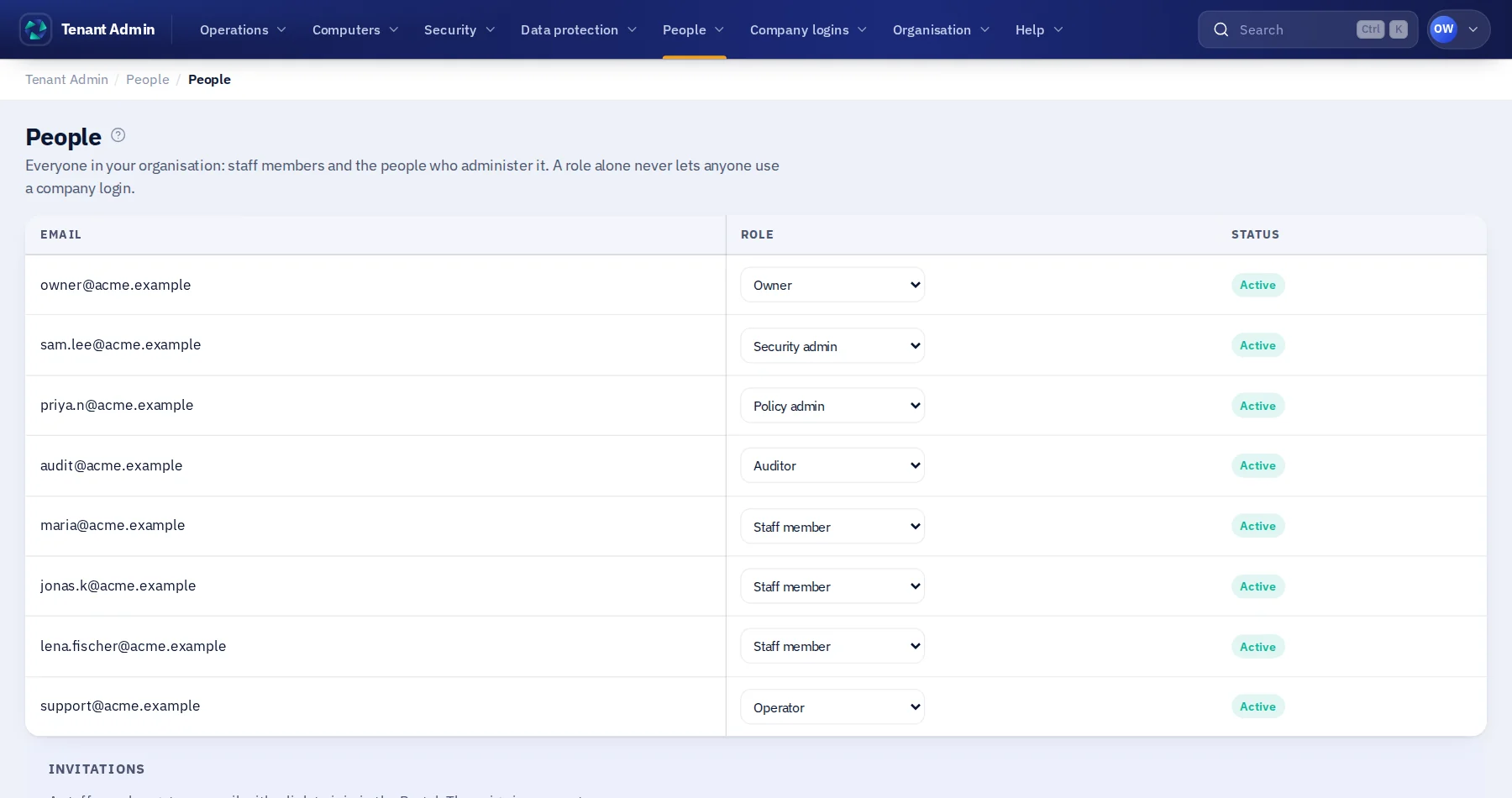
Every organisation has a main Tenant Admin. Everything else is delegated on purpose: an admin area is a named set of authorities, and the people you appoint to it get exactly those, nothing more.
- Roles
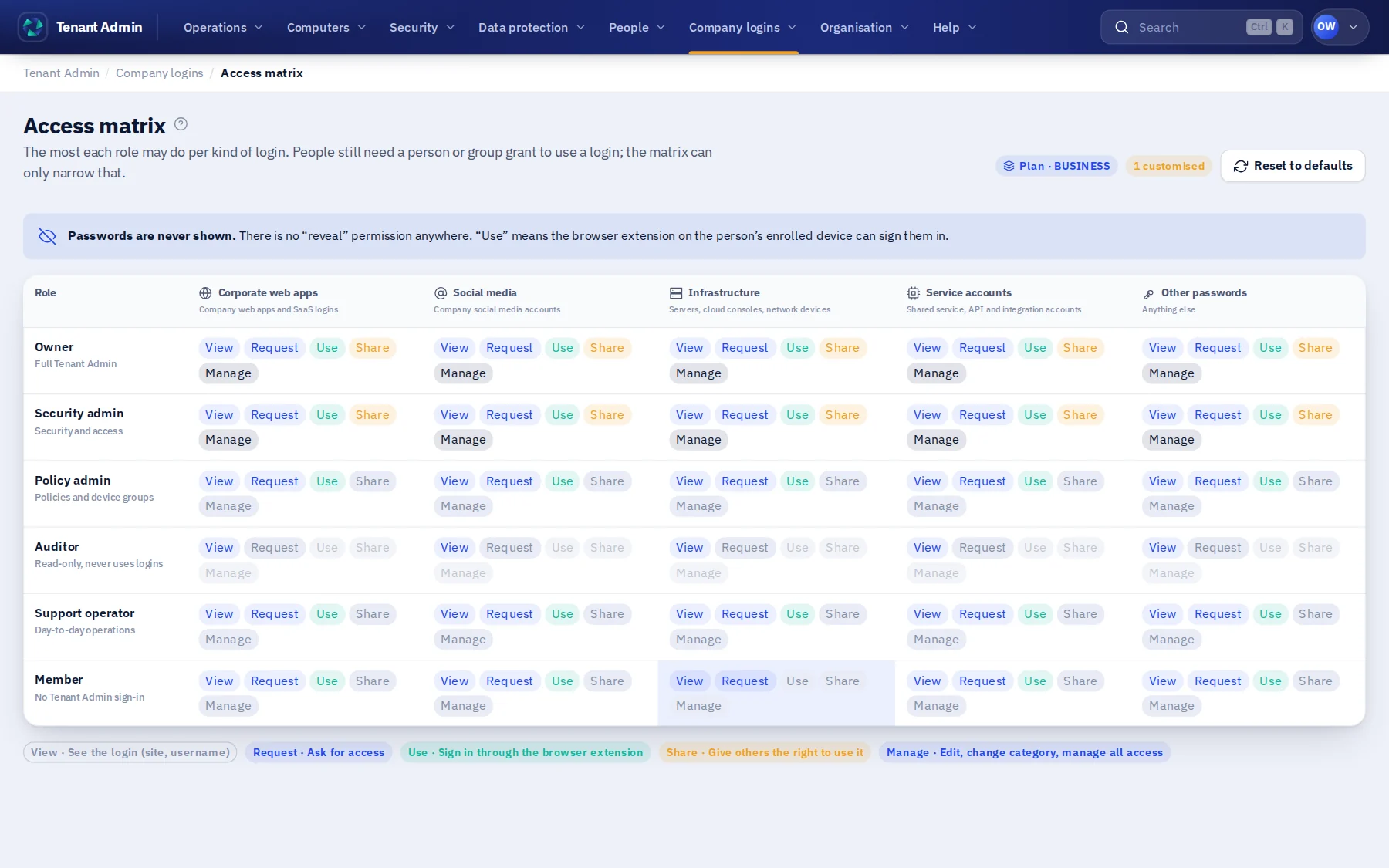
- Owner, security admin, policy admin, auditor, support operator and member. Each role has a ceiling per kind of login, and a security admin keeps the sign-in settings.
- Admin areas
- Finance runs the company cards. HR invites and removes people. IT sees, enrols and revokes computers. Or define your own area from the same building blocks: item categories, scopes, and the surfaces it may use.
- People
- Invite by email; the person accepts with their own account through a link in the Portal. No password is ever created for them. Invitations last seven days and can be sent again with one click.
- Groups
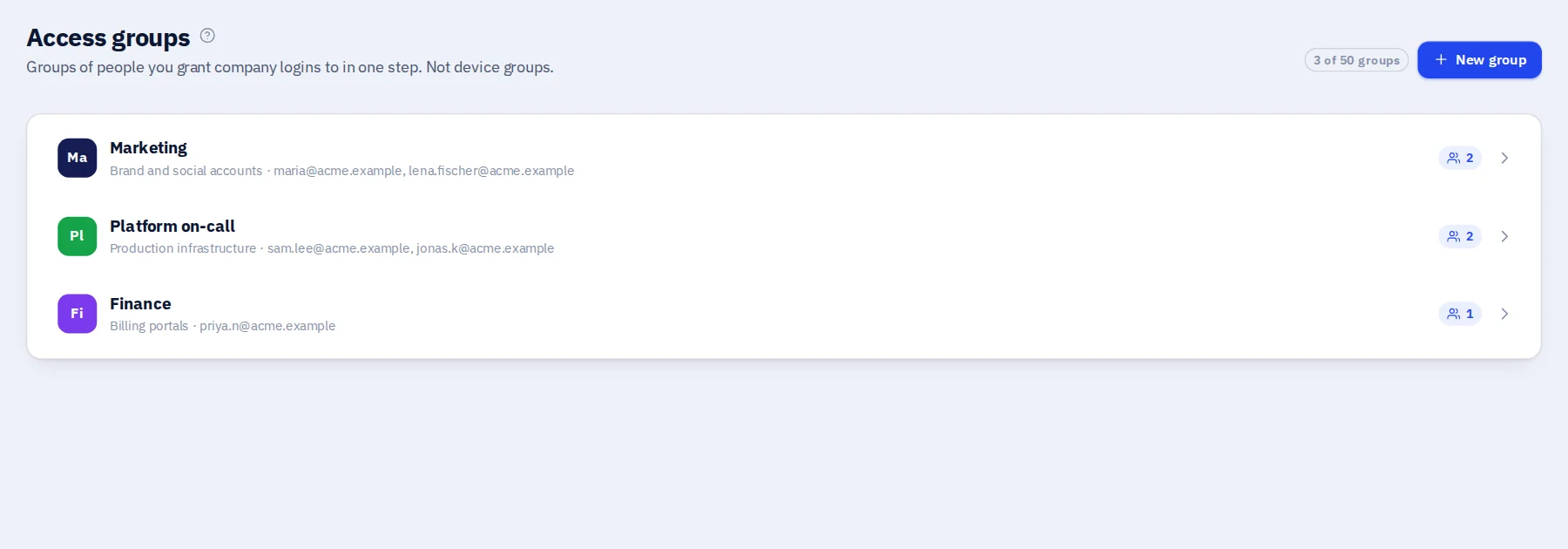
- Access groups such as Marketing or Platform on-call, so a login is granted to a team in one step and a leaver is out of every grant when they leave the group.
- Single sign-on
- Connect your identity provider, so your people sign in the way they already do.
- Your own mail
- Send invitations and notices through your organisation's SMTP server, with your own sender address.
Company logins
Share the use of a login. Never the login.
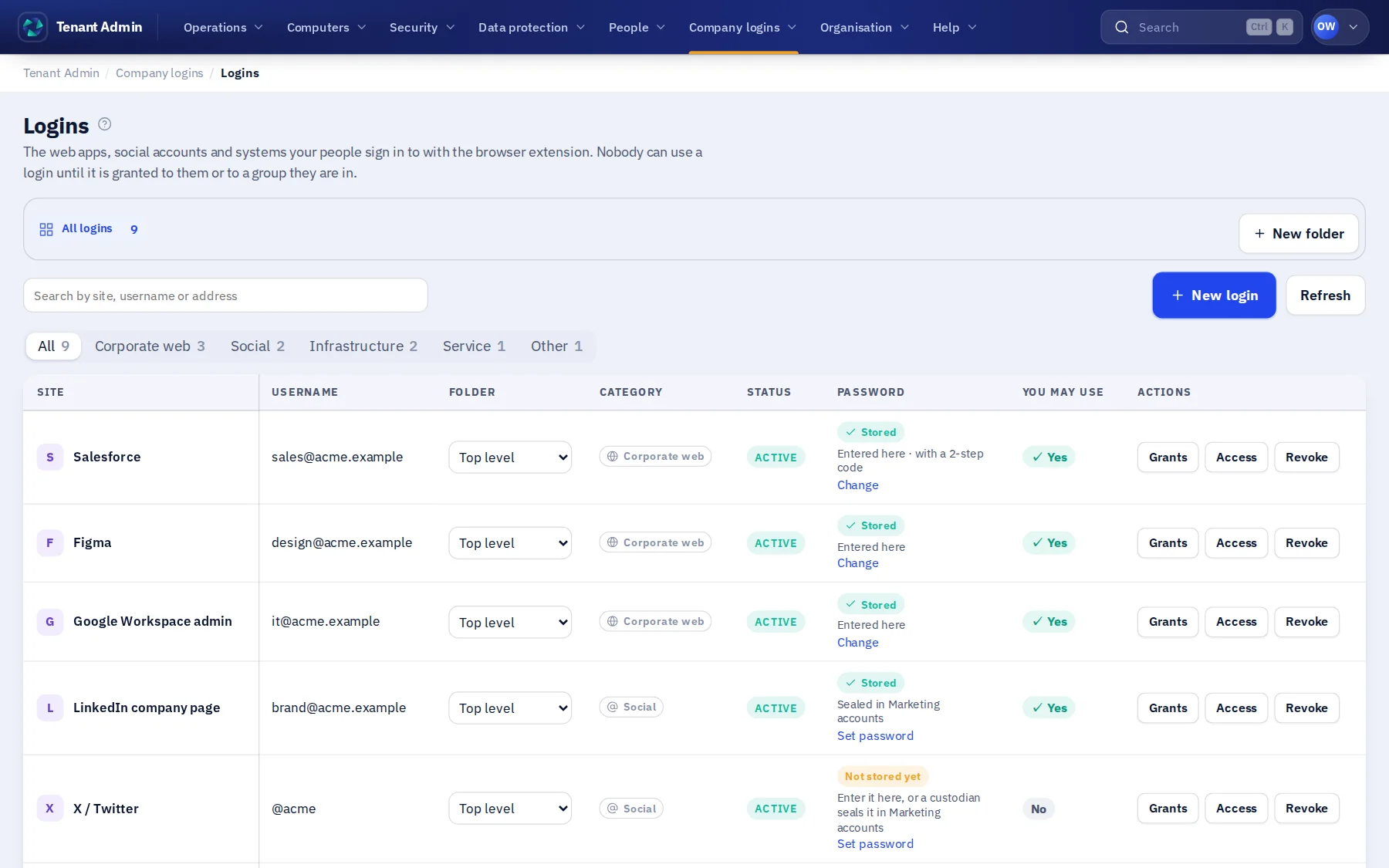
A company login is listed by its site and username, with a category such as corporate web app, social media, infrastructure or service account. Its password is sealed inside the scope's collection and reaches only the computers of the people who may use it, where Trustwelt Desktop fills it under a one-time permission.
- The access matrix sets the most each role may do per category: view, request, use, share or manage. A person still needs a grant to use a login.
- Grant use to a person or to a group, in one step. Take it back the same way.
- People ask for access in the Portal with a reason; the managers of that login approve or deny it here, and the answer reaches the person.
- Delegated sharing: a person with the share level can pass the use of a login on to a colleague, inside the ceiling their role allows.
- Each fill in the browser is a separate permission that lasts sixty seconds and works once. The password is never shown, copied or exported.
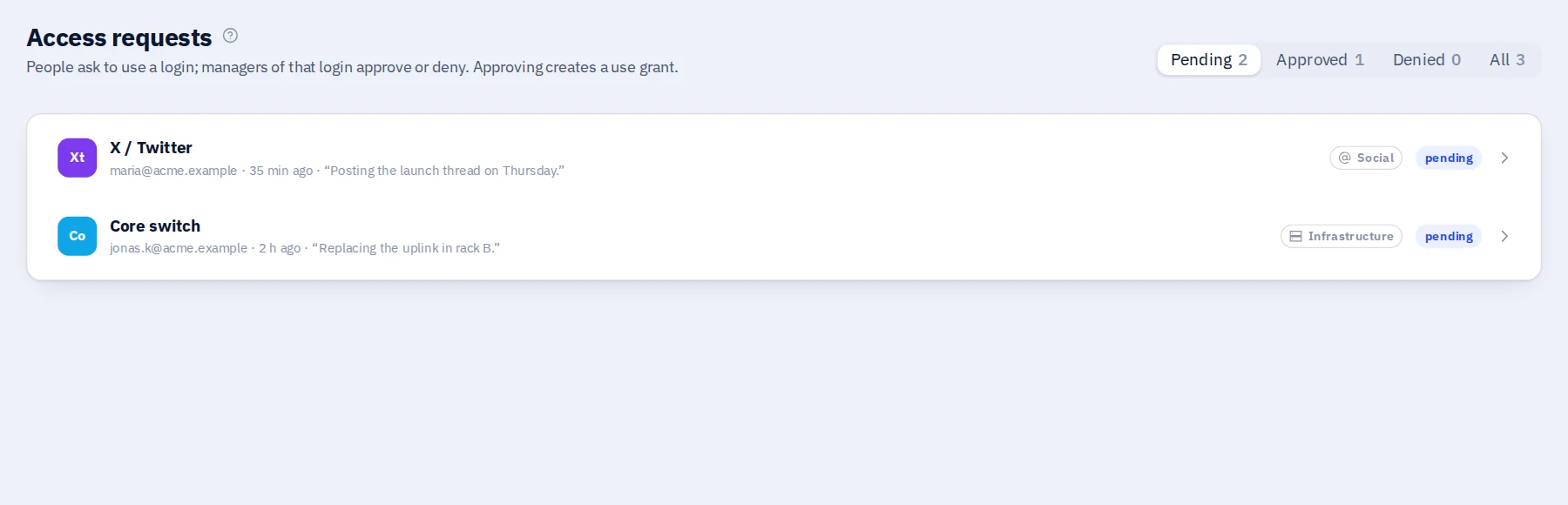
Custodian scopes
Let finance hold the company cards.
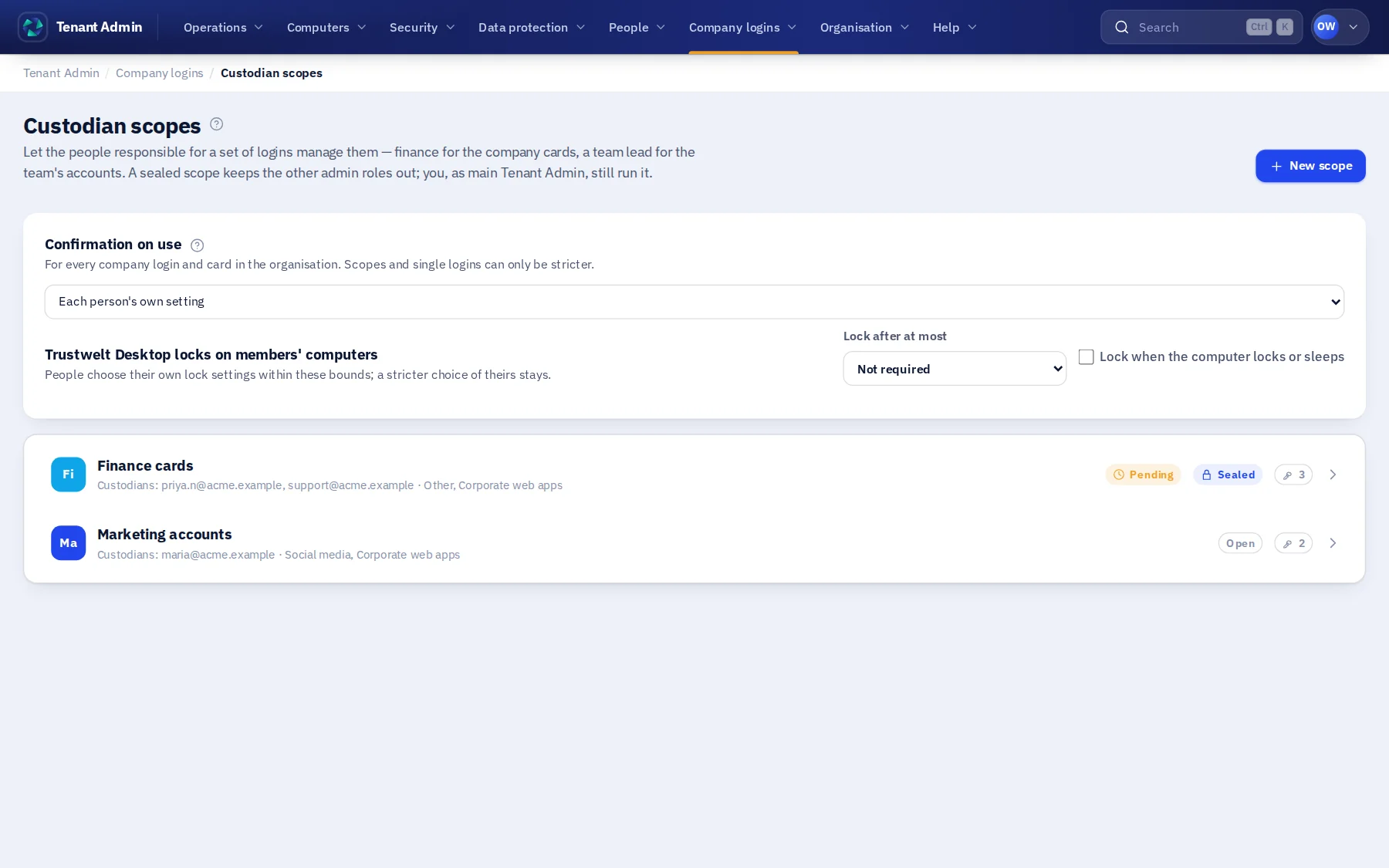
Company items are not always IT's business. A custodian scope gives a set of logins or cards to the people responsible for them: finance for the cards, marketing for the social accounts. The main Tenant Admin still sees everything; every other admin sees only what the scope lets them.
- Custodians add logins and cards to their scope and share their use with members, from the Portal.
- Seal a scope, and it disappears from every list, count and export an ordinary admin can see. Only its name and how many items it holds remain.
- Changing a sealed scope's custodians needs a second custodian to agree. The change waits, visibly, until it does.
- The scope's keys reach only the computers of its custodians and members, wrapped for each one. The server holds ciphertext.
- On Enterprise, the organisation can hold a recovery key for its scopes, kept offline as a code, so a scope survives its custodians leaving. Using it is a two-person step.
- Deleting a scope with items in it asks the person deleting it: move the items, or delete them with the scope.
Company cards
A card people can pay with, and nobody can read.
A custodian adds a company card from Trustwelt Desktop. Its number is encrypted on that computer and shared, sealed, with the computers of the people in the scope. Nobody can reveal it afterwards, not even the custodian.
Used under permission
Filling a company card asks the organisation for a one-time permission, then the person's master password. The number goes to the page and nowhere else.
No security code
The security code is never stored, for company cards or personal ones. Staff get it from the card holder, and type it on the page.
Amounts on record
The extension reads the visible total at checkout; the person confirms or corrects it. The audit names the card, the site, the person and the amount.
Personal stays personal
People in a company keep their own cards and logins in their personal vault. The organisation never sees them, and never sees where they are used, even on a computer it manages.
Usage audit
Every use of a company item, on record.
Each fill of a company login or card is an event: who, which item, which site, which computer, when, and for a card, the amount. Personal items produce no event at all.
- A list you can filter by person, item and period, and export to CSV.
- Retention you set for login and code events, a year by default. Card events stay for the life of the card.
- A warning thirty days before a company card expires.
- Records are written append-only, hash-chained, and scoped to your organisation. Nobody at Trustwelt can edit them either.
- A Tenant Admin sees counts of a person's personal activity at most: never a site, an item or a time.
Web protection
Decide which sites your organisation's computers may open.
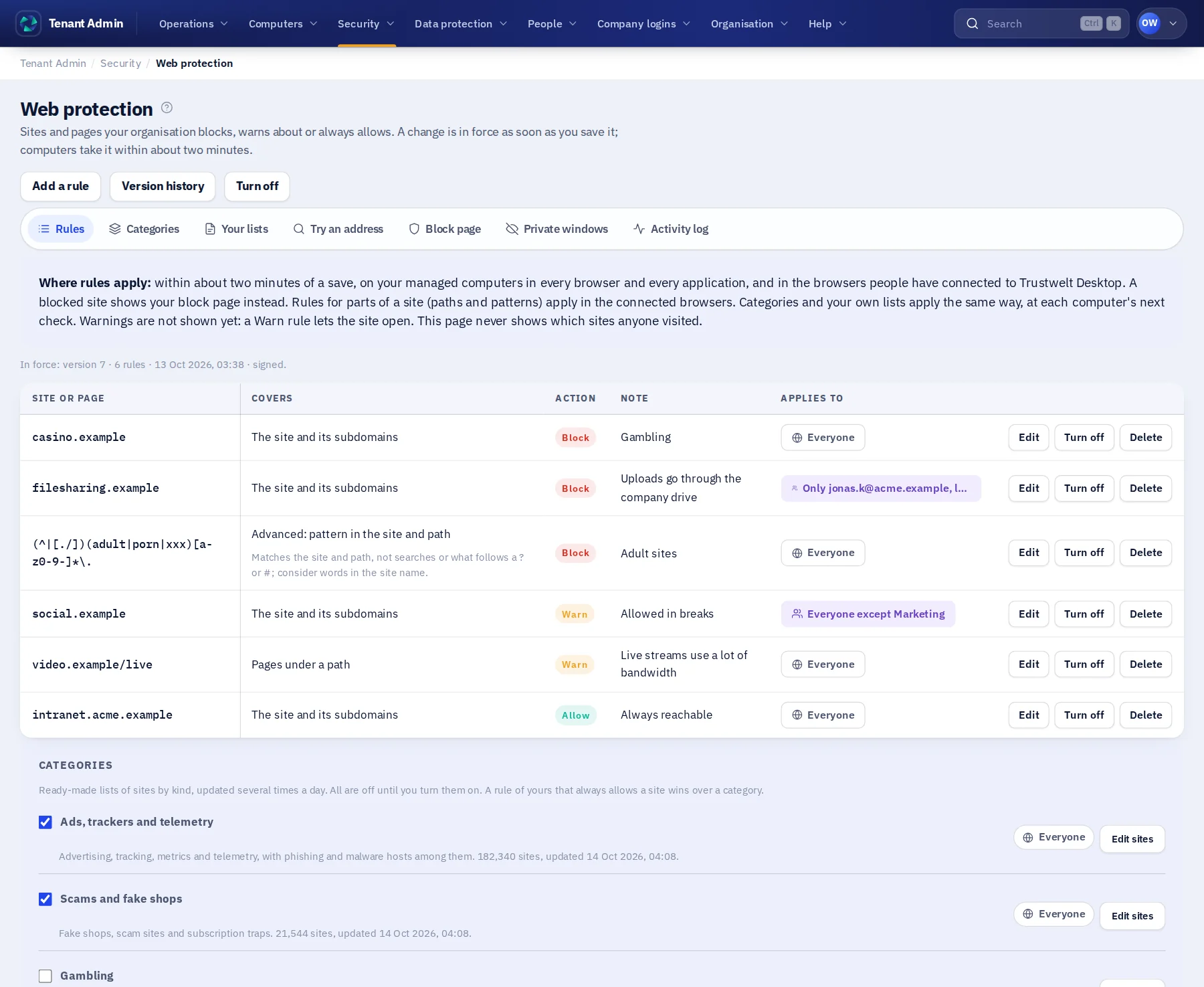
Write the rules once, in plain words: a site and everything under it, one site only, pages under a path, or any address that contains a word you name. Choose block, warn or allow and try an address in the simulator. A rule is in force as soon as you save it: every managed computer picks it up by itself within about two minutes, and the version history brings back an earlier set.
- A blocked site shows your organisation's own page, in your words, with whom to ask. The person is never left staring at an error.
- A rule that names a site wins over a general pattern, so an exception for one site holds.
- A site whose certificate is expired, forged or not trusted is stopped in the same way, with the reason spelled out.
- Rules reach the browsers, and on managed computers the computer itself: a second browser or another application does not go around them.
- Private windows are your choice. Allowed, a blocked site stays blocked there and shows your page; turned off, the browsers on your computers simply do not offer them.
- Switching protection on or off, and every change of the rules, is yours alone and is recorded in your audit.
What you see, and what you do not
- Each block or warning: the site, when, which rule, which computer and which person. Allowed browsing is not recorded.
- A full activity log — every site opened on managed computers — exists only if you switch it on, and your people are told that you did.
- Nothing about a page beyond its address: no content, no form, no password.
- People see what their organisation can see of them, in their own Portal.
Managed computers
Nothing is left for your people to do.
On a computer your organisation manages, a person types their master password once. From then on everything is already set: the browser is connected, the rules apply, sync is on, and none of it can be switched off from that chair.
Always on
Trustwelt starts with every session and comes back if it is ended. There is no Quit and no Sign out for the person; only the organisation ends it.
Lock hides, it does not stop
Locking the screen hides the window from anyone passing by. Filling in the browser, sync and protection carry on. The person's own PIN brings the window back.
You know which computers report
Each managed computer checks in regularly. One that stops — switched off, unplugged, or tampered with — shows as not reporting, and you are told by e-mail.
What an administrator of the computer can still do
Protection on a computer is stopped only by an administrator of that computer, deliberately, and that shows in your console as paused. Your people are not administrators of their work computers, and need not be: nothing here asks anything of them.
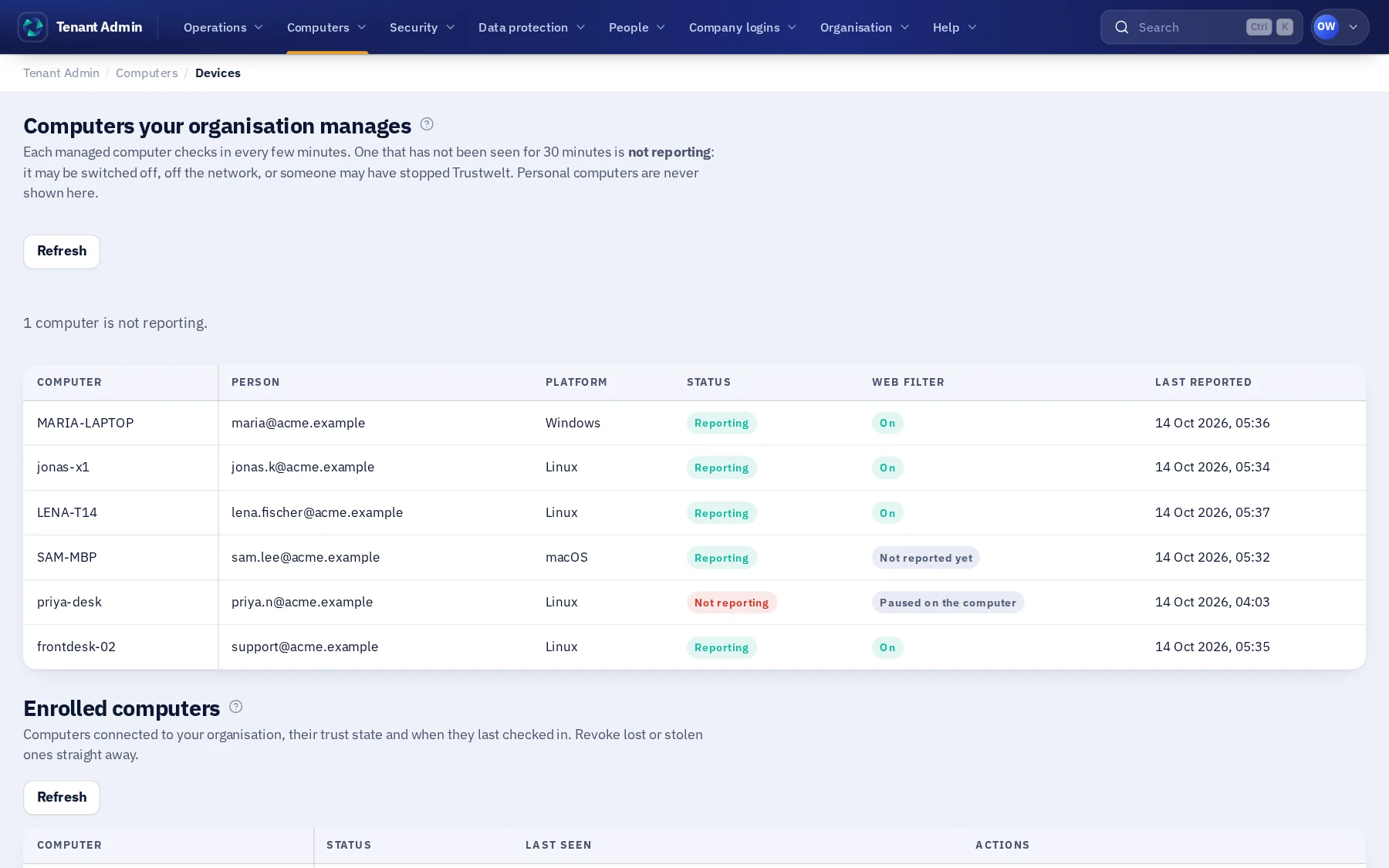
Computers and security
The device trust platform, run from the same console.
Enrol computers, see their posture, group them and set policy, send a registered action to one of them, quarantine one in an incident, and retire it when it leaves. The IT area can be given the devices surface without the rest.
Enrolment and revocation
Device identity about Enrolment and revocationSingle-use tokens scoped to your organisation. A revoked device loses access at its next request.
Groups and policy
Trust decisions about Groups and policyGroup devices and give each group a policy: what posture is required, and what happens when it is not there.
Commands
Remediation about CommandsRegistered, signed actions sent to one device. Never a shell.
Incidents
Incident response about IncidentsContain a device or a session, keep the evidence, and move the incident through its states.
Browser sign-ins
With the person's consent, the agent reports the sites and usernames the browser has saved, never a password, so you know what needs moving into the vault.
Console access
An IP allowlist for the console, sign-in settings under the security admin, and every admin session bound to your organisation's own host.
Sign-in and plan
Your admins' sign-in, and your subscription.
Admins sign in at your organisation's own address with a password and a second step, or through your identity provider. The main Tenant Admin subscribes the organisation to Business or Enterprise and sees the plan's limits in the same console.
- Own hostEach organisation has its own admin address, and a session from another organisation's host is refused.
- Two stepsA one-time code or a security key on every admin account, with recovery codes.
- Every route authorisedEach action needs its permission: an auditor cannot revoke a device, and an operator cannot change trust.
- SubscriptionMonthly or yearly, cancelled by the main Tenant Admin, running to the end of the paid period. Prices agreed with you are applied automatically.

Set up your organisation.
Business for teams, Enterprise for fleets, custody and assurance. Prices are agreed with you.